

Test Scenarios
Scenarios let you test how your AI agents handle different situations before going live. Think of them as automated quality assurance tests that run realistic conversations with your agents.Why Use Scenarios?
Before deploying an AI agent to handle real customer calls, you need to know:- Will it handle angry customers appropriately?
- Can it process refund requests correctly?
- Does it follow your company’s policies?
- Will it maintain quality across different customer types?
How Scenarios Work
A scenario defines a specific situation (like “customer requesting refund”) and automatically tests it across different customer personalities and agent configurations.Example: Create one “Refund Request” scenario with 5 customer personas and 3 agent variants. Chanl automatically runs 15 conversations (5 × 3) and scores each one.
The Core Formula
Creating Your First Scenario
Chanl provides both a visual UI wizard and an API for creating scenarios. Here’s how to do it:- Via UI
- Via API
The scenario creation wizard guides you through 6 steps: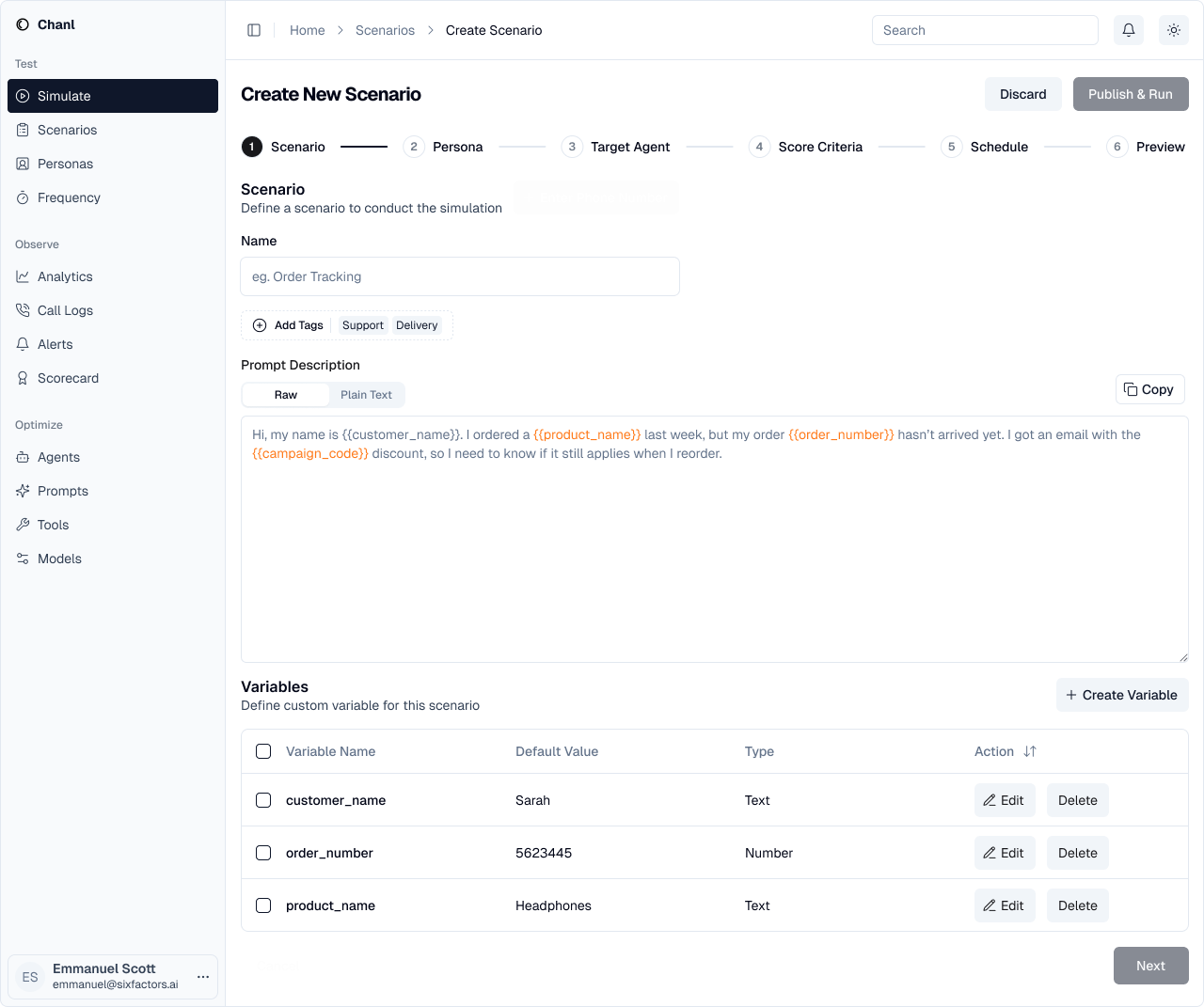
Step 1: Define the Scenario
Give your scenario a name and describe the situation you want to test. You can use variables to make scenarios reusable.- Name: Descriptive title (e.g., “Order Tracking”)
- Tags: Organize scenarios by category
- Prompt: Describe the customer situation
- Variables: Make scenarios reusable with placeholders like
{{customer_name}}
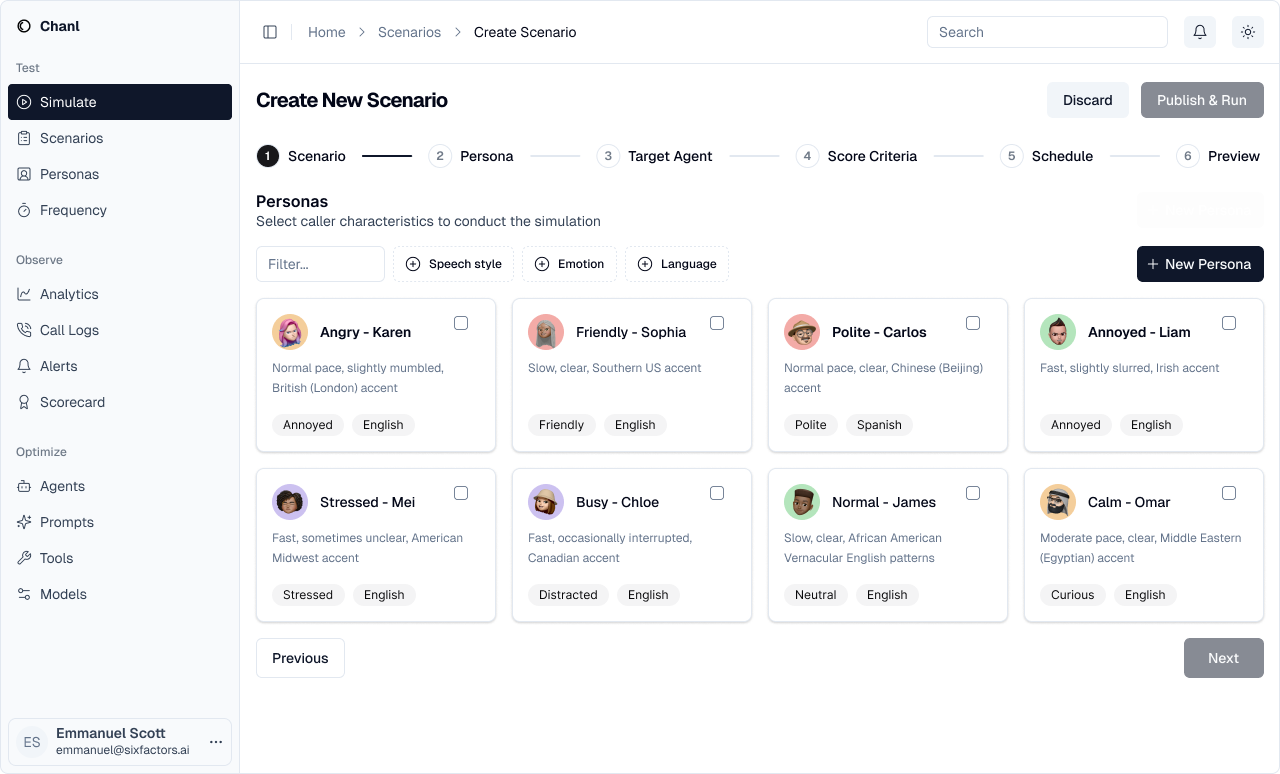
Step 2: Select Personas
Choose which customer personalities to test against your agent.- Different emotional states (angry, friendly, stressed)
- Various speech patterns (fast, slow, mumbled)
- Multiple accents and languages
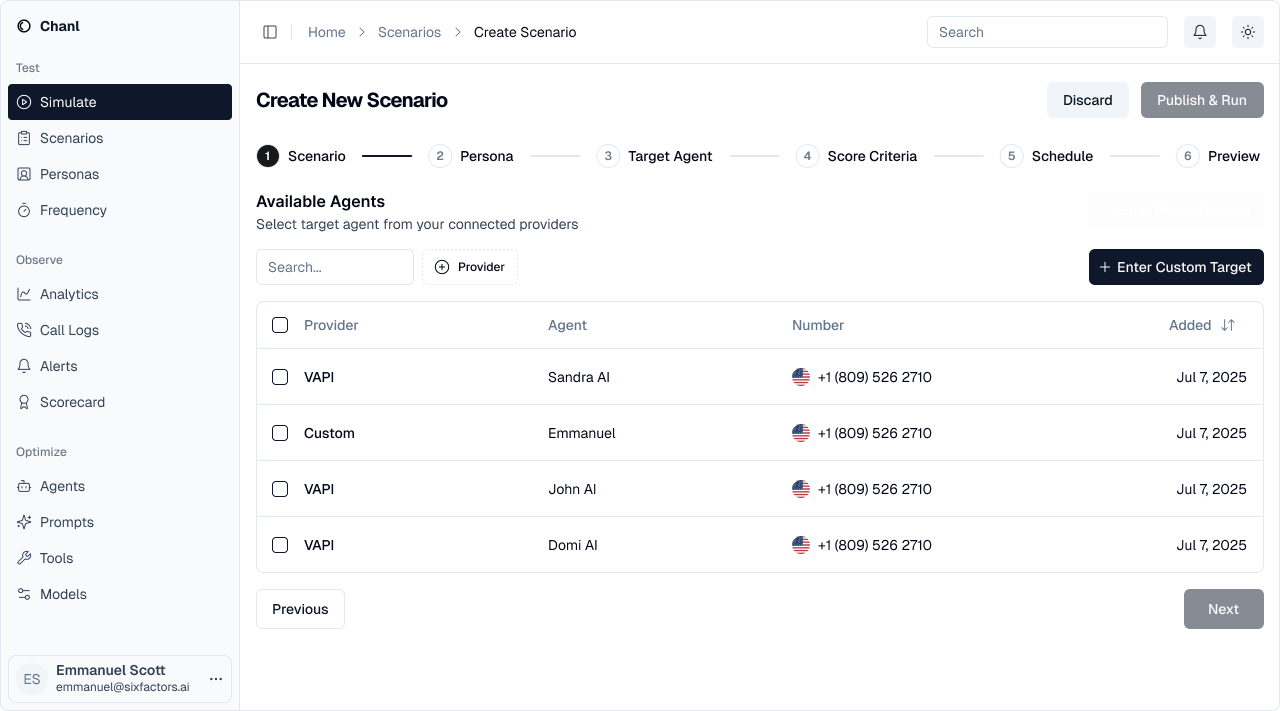
Step 3: Choose Target Agents
Select which agents to test with this scenario.- Production vs staging agents
- Different prompt versions
- Various AI models (GPT-4, Claude, etc.)
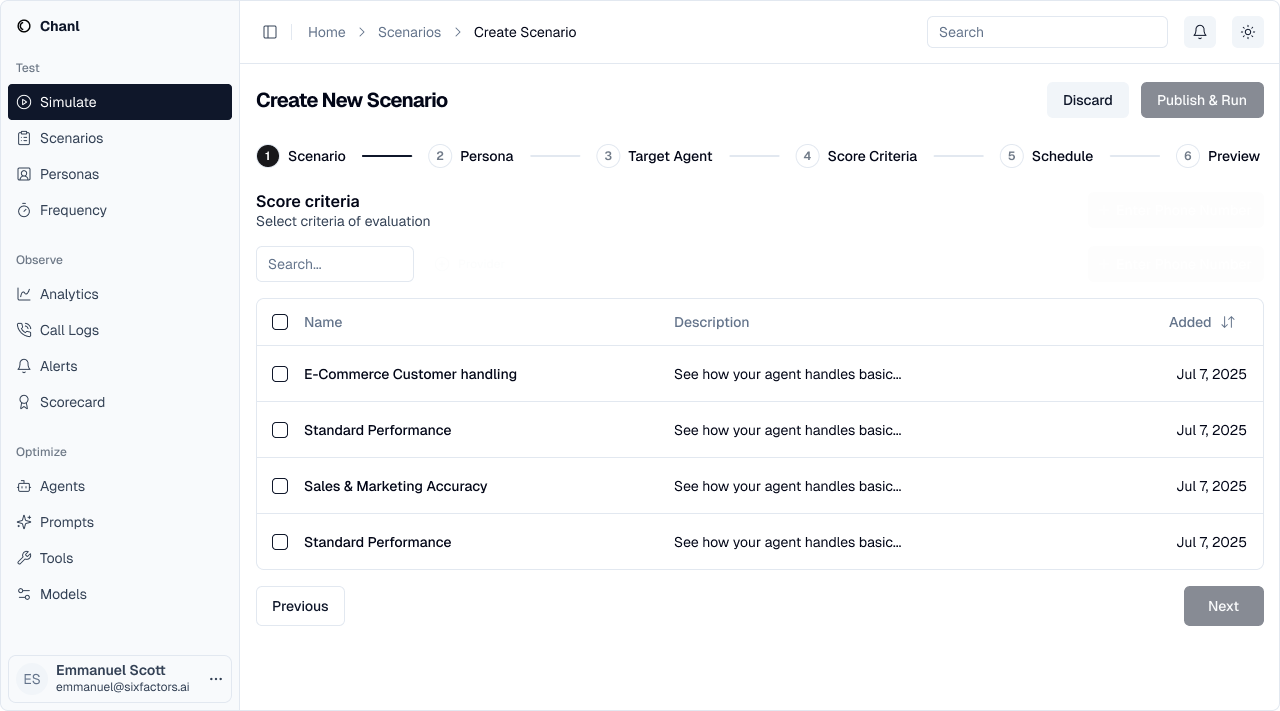
Step 4: Select Score Criteria
Pick the scorecard that defines quality standards for evaluation.- Customer service quality
- Sales effectiveness
- Compliance requirements
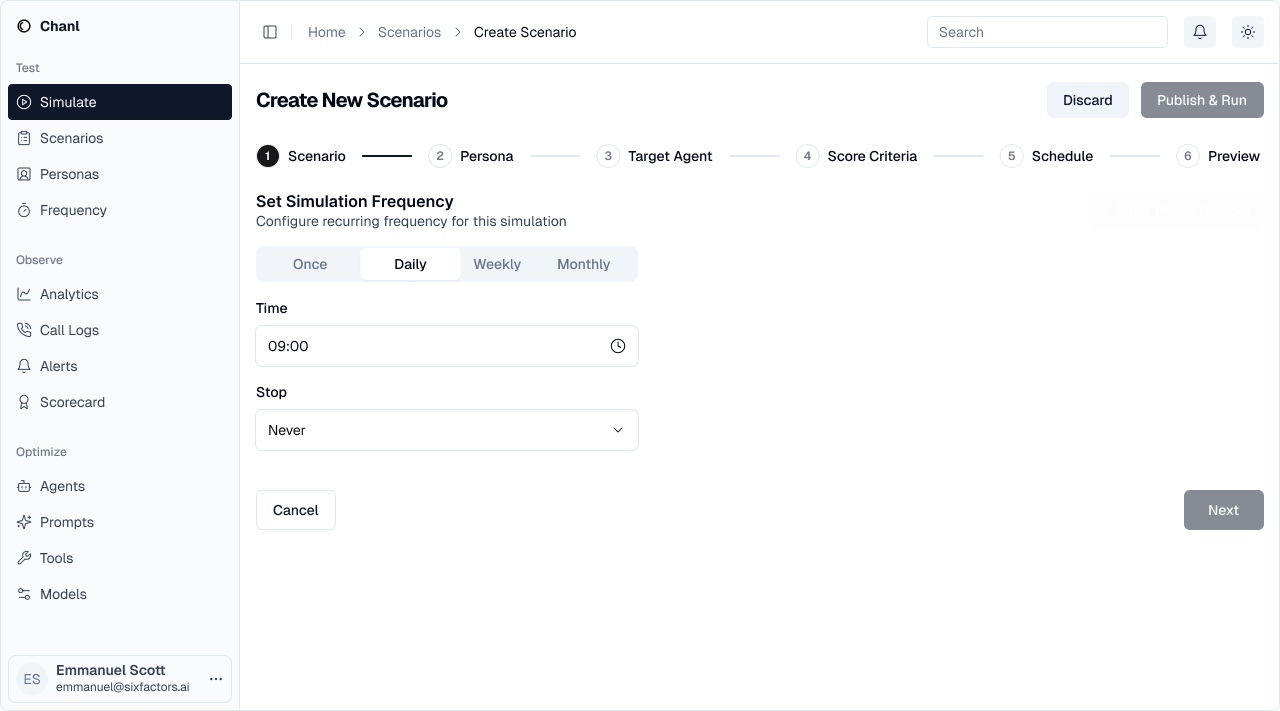
Step 5: Set Schedule
Configure how often this scenario should run automatically.- Once: Run immediately, manual reruns
- Daily: Continuous regression testing
- Weekly/Monthly: Periodic quality checks
- Stop condition: Never, after date, or after N runs
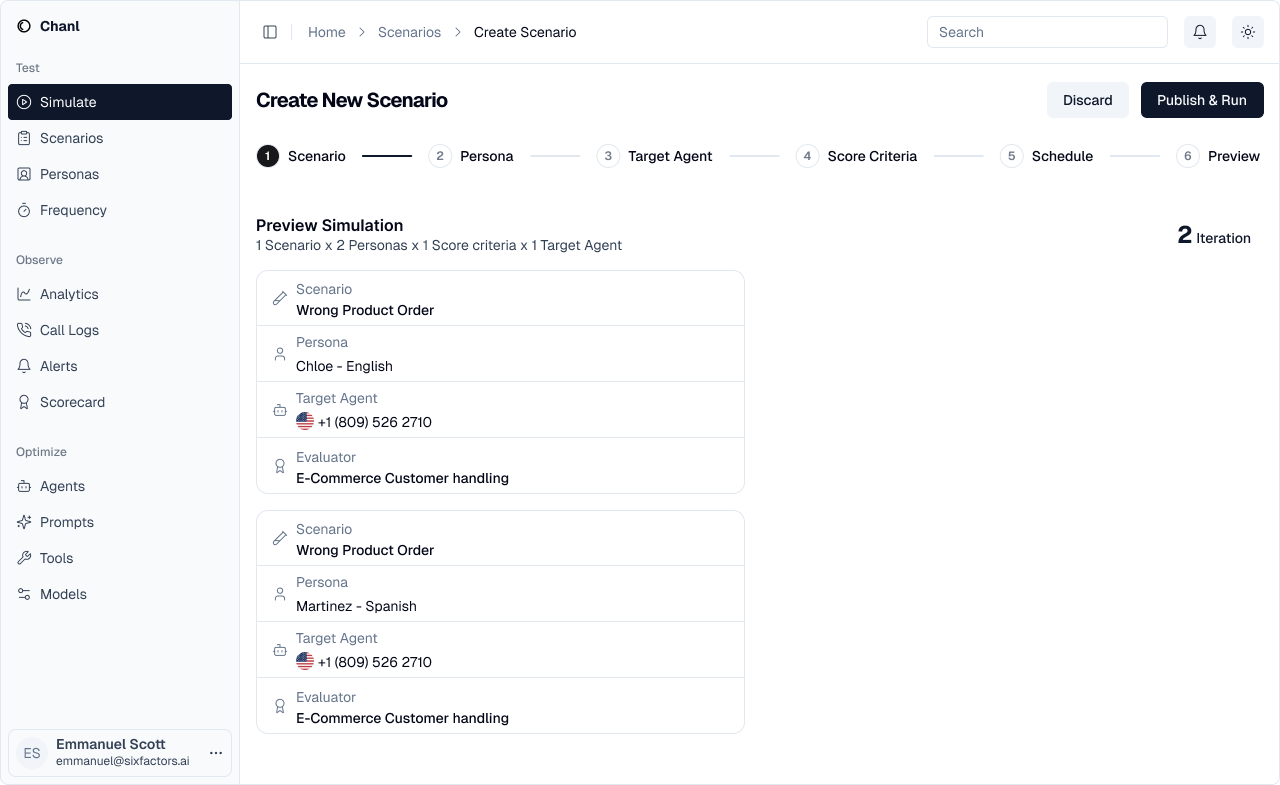
Step 6: Preview & Launch
Review your configuration before running the simulations.- 2 personas × 1 agent × 1 scorecard = 2 simulations
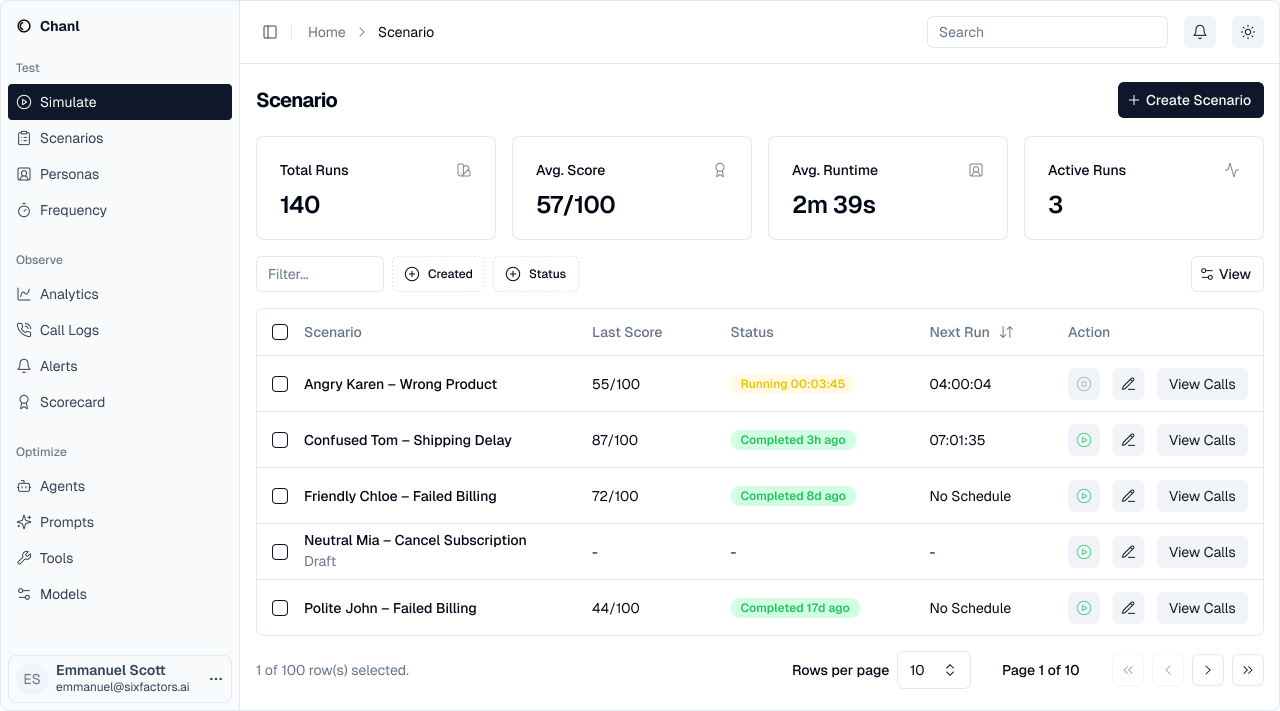
Managing Scenarios
After creation, view all your scenarios in one place:- Total runs and average scores
- Active vs completed scenarios
- Quick access to results
- Edit or rerun scenarios
Scheduling Automated Tests
Run scenarios automatically to catch issues before customers do.Scheduling Options
Once
Run immediately, then manually trigger again when needed
Daily
Perfect for testing production agents every night
Weekly
Good for regression testing major scenarios
Monthly
Useful for comprehensive quality audits
Setting End Conditions
Control when scheduled tests stop:End Condition Options
End Condition Options
- Never - Runs indefinitely (useful for continuous monitoring)
- End Date - Stops after a specific date (good for limited testing periods)
- After N Runs - Stops after specified executions (e.g., 30 days of daily tests)
Understanding Scenario Results
After running a scenario, you’ll see results for each simulation:Reading the Results Dashboard
Scenario: Product Refund Request
Total Simulations: 6 (3 personas × 2 agents)
Key Finding: Agent V2 performs better with frustrated customers
Recommendation: Deploy V2, improve V1’s empathy responses
| Combination | Score | Status |
|---|---|---|
| Frustrated + Agent V1 | 78 | ⚠️ |
| Frustrated + Agent V2 | 92 | ✅ |
| Analytical + Agent V1 | 85 | ✅ |
| Analytical + Agent V2 | 88 | ✅ |
| Confused + Agent V1 | 71 | ❌ |
| Confused + Agent V2 | 82 | ✅ |
Analyzing Patterns
Look for:- Persona weaknesses - Which customer types cause issues?
- Agent comparisons - Which version performs better?
- Consistent failures - What scenarios always score low?
- Score trends - Are agents improving over time?
Common Scenario Templates
Customer Service
Sales
Technical Support
Compliance Verification
Best Practices
Start Small, Scale Up
Start Small, Scale Up
Begin with 2-3 personas and 1-2 agents. Once you validate the scenario works, expand to cover more combinations.
Test Edge Cases
Test Edge Cases
Don’t just test happy paths. Include difficult personas like “confused elderly customer” or “angry and rushed.”
Use Descriptive Names
Use Descriptive Names
Name scenarios clearly: “Refund Request - Defective Product” not “Scenario 1”
Version Your Scenarios
Version Your Scenarios
When testing new agent versions, keep scenario names consistent to compare results over time.
Schedule Regression Tests
Schedule Regression Tests
Run key scenarios daily to catch when agent updates break existing functionality.
Automated Testing with API
Automate scenario testing programmatically:Troubleshooting
Simulations timing out
Simulations timing out
Problem: Simulations take too long or timeoutSolutions:
- Reduce the number of personas or agents in the scenario
- Check if your agent has timeout issues in production
- Contact support if timeouts persist
Low scores across all simulations
Low scores across all simulations
Problem: All combinations scoring below 70Solutions:
- Review your scorecard criteria - are they too strict?
- Check agent configuration for obvious issues
- Review simulation transcripts to identify common failure points
Inconsistent results
Inconsistent results
Problem: Same scenario getting different scores on rerunsSolutions:
- This is normal with AI - some variation expected
- Look at trends over multiple runs, not single scores
- If variation is extreme (±20 points), review agent configuration
What’s Next?
Create Personas
Build customer behavior profiles to test against
Review Simulations
Analyze your scenario results in detail
Build Scorecards
Define quality criteria for evaluating scenarios
API Reference
Complete API documentation for scenarios